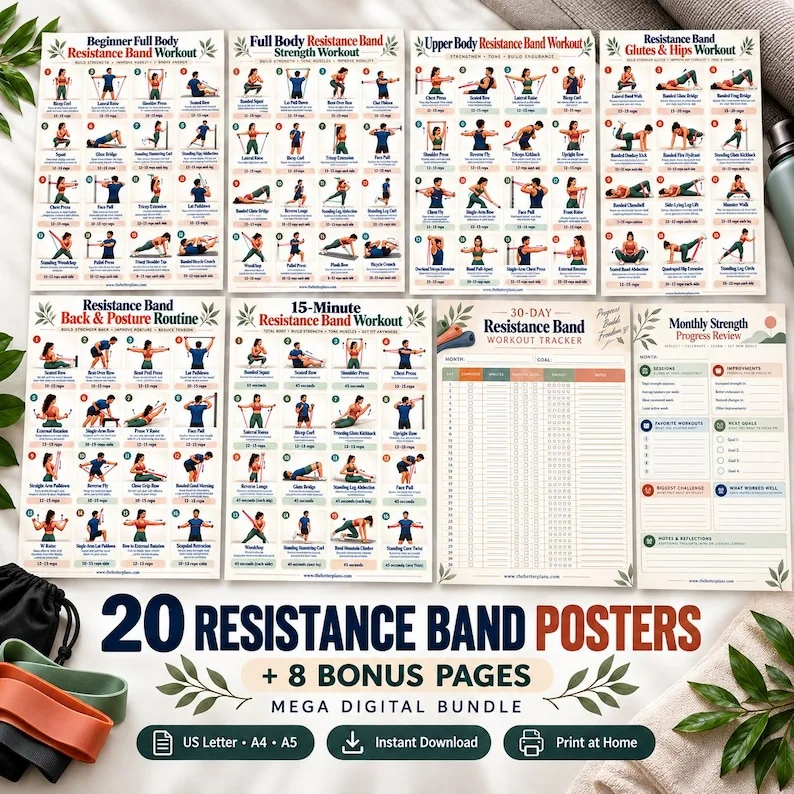
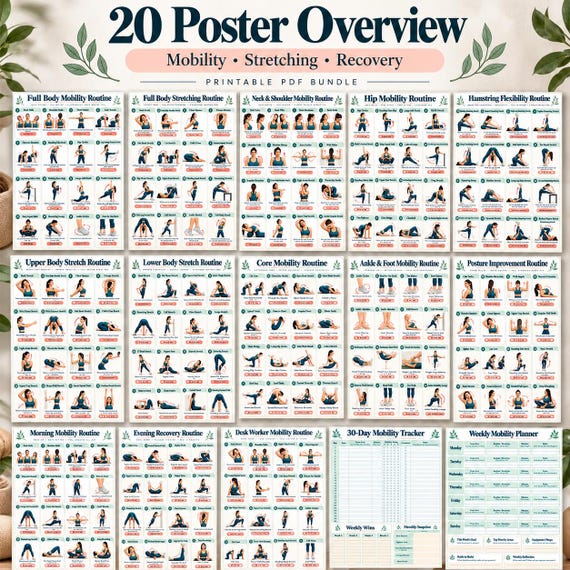
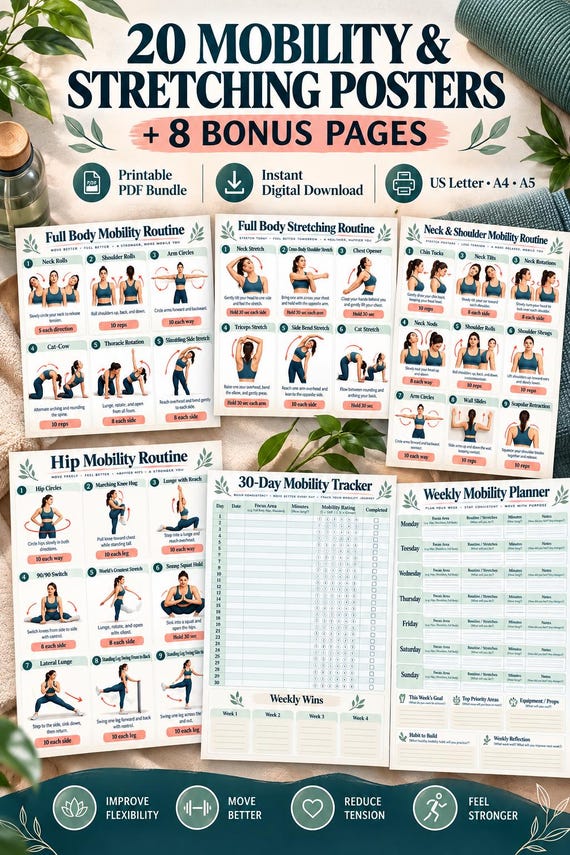
 THE BETTER
A tablet can keep a workout reference close at hand without a stack of loose paper. The useful test is whether the right page opens when the connection is unavailable, the screen is locked and you have little time to search. Seeing a document inside a cloud app does not always mean its full contents are stored locally. An offline setup needs a small amount of deliberate preparation. This guide describes a platform-neutral approach: retain a clean local copy, choose a dependable viewing workflow and prove that the material is available before relying on it. It is about access and organization, not about choosing exercises or replacing instruction.
Define what you need available offline
Begin with the pages you actually consult. A full bundle can include covers, printing guides, posters and logs, but you might only need one reference and a weekly planning sheet on the tablet. Write down those roles before choosing folders or shortcuts. The smallest useful collection is often easier to navigate than a library containing every download you own.
Distinguish an offline reference from a synchronized workspace. A locally stored PDF can be your dependable reading copy, while another copy holds notes that you synchronize when a connection returns. Keep their names different. For example, a read-only reference folder and a separate notes folder make it clear which file should remain unchanged. Do not remove pages from the only original download just to simplify the tablet view; preserve that original elsewhere as a recovery copy.
Confirm that a full file is stored locally
A recent-file thumbnail or a link in an email is not a complete availability check. Use the device's ordinary file management workflow to save a copy to local storage, then open that saved copy in your chosen PDF viewer. The exact controls depend on the device and app, so follow their current help rather than assuming every download button performs the same action.
Give the copy a recognizable name that includes the subject and size or edition when useful. A filename such as chair-reference-letter-original.pdf tells you more than download-3.pdf. Check several pages, including the final page and a dense illustration page. A file that displays its first page may still be incomplete or inconvenient to load. Make sure there is enough local storage for the file and for any annotated copy you plan to create.

Prove the setup without a connection
Disconnect using the device's normal controls, close the document and reopen it from the local folder. Move beyond the first page and use zoom on a detailed diagram. This test is more meaningful than leaving an already loaded page on screen, because cached content can conceal a missing local file. Confirm the text and images you need remain visible.
Repeat the test after closing the viewer fully and reopening it, if your ordinary workflow allows that. Also lock and unlock the screen once. These steps reveal whether a shortcut opens a cloud link instead of the local document, or whether an account prompt interrupts reading. Reconnect afterward as needed. Record the location of the working local file so you can return to it without remembering the path through several menus.
Create navigation around page roles
Use the viewer's available navigation tools if they help: a contents pane, page thumbnails, bookmarks or a simple page-number note. You do not need all of them. A short index saying reference page 4, weekly log page 9 may be enough for a small document. Make the index understandable without looking at the cover image.
Keep the original printed page labels distinct from the viewer's page count. A cover can make the viewer's page 5 correspond to a printed label of page 4. Write both numbers in an index when this difference could cause confusion. For mixed bundles, name the individual file as well as the page. A bookmark called warm-up is ambiguous if several files use that heading; a specific reference title prevents opening the wrong material.
Arrange the screen for legible reading
Set the device in a stable position and inspect the page at the distance from which it will be read. A portrait poster shrunk into a landscape screen may have impressive-looking artwork but unreadable cues. Choose a useful orientation and zoom level before the session rather than adjusting tiny controls while trying to follow the page.
Review the screen's ordinary brightness and automatic lock settings according to your preferences. Keep a way to pause and put the tablet down. Do not balance it on unstable furniture or place it where equipment could knock it over. If the complete poster cannot be read comfortably, use a fuller guide one section at a time or a printed version. Digital convenience does not compensate for unclear movement instructions.
Separate marks from the clean reference
If you annotate a PDF, save the marked copy with a date or a clear notes label. Keep a clean original for checking whether a confusing arrow or symbol was part of the design. A freehand circle can later look like an instruction if it crosses an illustration. Put questions in a margin or notes panel rather than directly over the body position.
After a few uses, reopen the clean and marked copies to confirm that the names are unambiguous. If you share the tablet with someone else, create separate notes files instead of blending observations. Personal notes may contain information you prefer to keep private, so consider the device's usual lock and backup arrangements. Do not assume a local copy is automatically included in a cloud backup; verify your actual setup separately.
Maintain a small recovery routine
Keep a second copy of the original download in a location you can recover if the tablet fails. That might be a computer or another storage device you already use. Document the file name, where it came from and whether it is the latest version. The local tablet folder is convenient, but it should not become the only surviving copy of a purchase.
Every time you replace a file, repeat the offline opening test. Delete obsolete shortcuts only after the new copy works. Keep the active folder small and move old marked copies into an archive when appropriate. A reliable tablet setup is a repeatable process: save a complete file, label it clearly, check access without a connection and keep one recoverable original. That process matters more than choosing an elaborate collection of apps.
Test the locally saved file after closing the viewer and disconnecting, then keep a clear index and a separate clean recovery copy.
Written for general information by The Better Plans. Exercise and wellness content cannot diagnose a condition or replace individual professional advice. The Better Plans also sells digital products on Etsy, but this article is free to read and requires no purchase. Read our editorial policy or send a correction.