 THE BETTER
Two workout planners can look identical while behaving differently on a screen. One may contain interactive fields, and the other may simply be a designed page on which you can add text or handwriting. That distinction changes how you enter notes, save them and share a completed copy. It does not make one format inherently better: a flat page may suit printing, while a form may suit repeated typed entries. Start by identifying what you received instead of assuming that every box is clickable. This guide explains a practical test and a careful note-taking workflow without depending on one particular PDF application or its menu names.
Recognize a designed box versus a form field
An outlined square is visual artwork unless the file also contains an interactive control there. Open a clean copy and try selecting an obvious entry area with the viewer's normal selection tool. A field may accept a cursor or reveal a selectable control. A flat design may only display the artwork. Check the product's file description as well; appearance alone cannot establish whether interactive fields were included.
Do not treat the inability to type directly into a box as proof that the download is broken. The file may be a print-first planner. If the listing explicitly promises fillable fields but the expected controls are unavailable, try a suitable viewer and ask the seller for clarification. Keep your question specific: name the file, page and entry area, rather than reporting that the whole planner does not work.
Choose an input method for the actual task
For a short date or total, a text annotation can be useful on a flat planner if your viewer supports it. For a longer explanation, a note placed beside the relevant row may preserve the page layout better than squeezing tiny text into a box. Handwriting can feel natural with a stylus, but it still needs to remain legible when the page is reopened or printed.
Consider whether the completed sheet needs to be searched, printed or read by someone else. Freehand marks may not behave like searchable typed text. A form entry and an annotation can also be represented differently when exported. Choose one main method for recurring entries so the page does not become a confusing mixture of font sizes, floating notes and handwritten labels. Keep questions separate from completed activity records.
For example, keep a typed date inside the date box and put a longer explanation in a separate note labeled with the row number. Reopen both after saving. This makes it possible to discover a displaced annotation before you repeat the same layout across every row in a monthly log.

Save a working copy before adding entries
Create a copy with a clear period label, such as weekly-log-2026-10-12-notes.pdf. Leave the downloaded original untouched. This lets you start another week from a clean page and compare any odd mark against the original design. A file called final-new-final.pdf makes that distinction much harder to maintain.
Before filling a whole month, enter one example date and one short note. Save the copy, close it and reopen it from its saved location. Check whether those entries remain, whether their position is correct and whether the file name identifies the intended week. This small round trip tests the saving workflow. It is easier to correct a missing text entry now than to discover later that a long session of notes was only visible in an unsaved app state.
Keep annotations away from movement cues
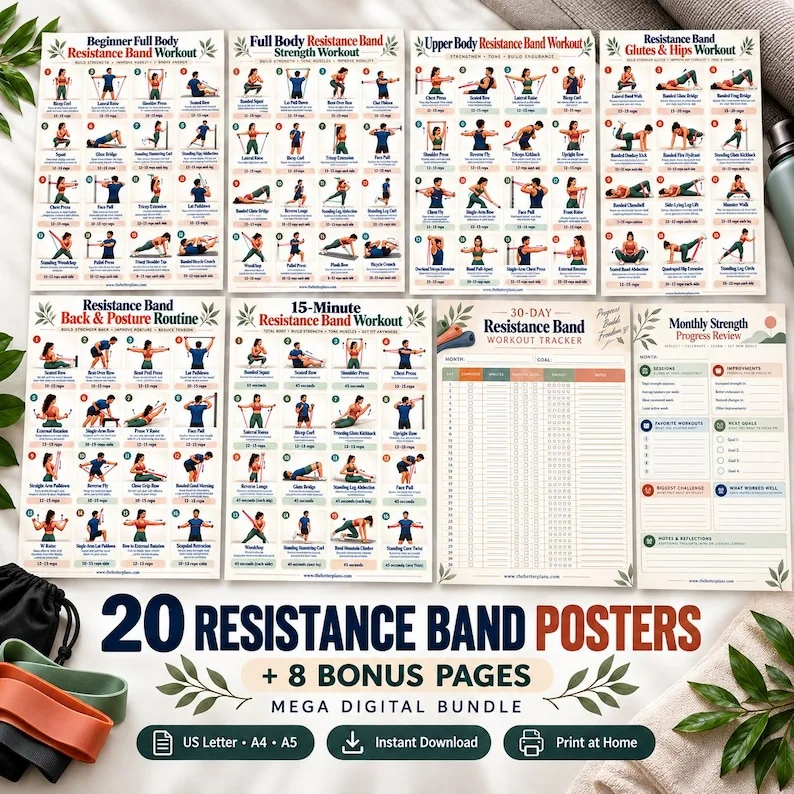
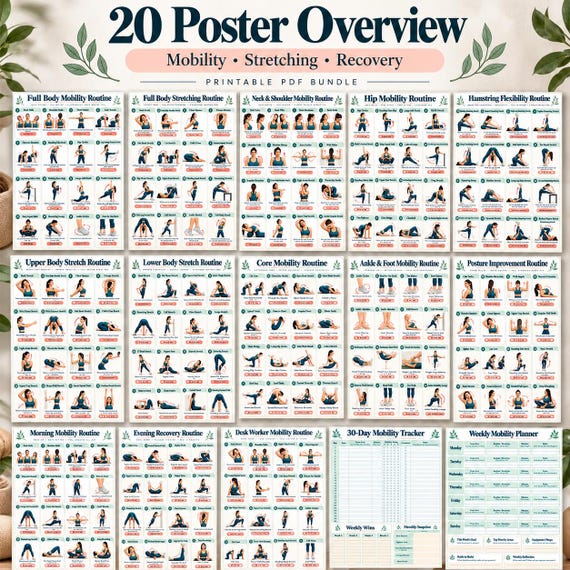
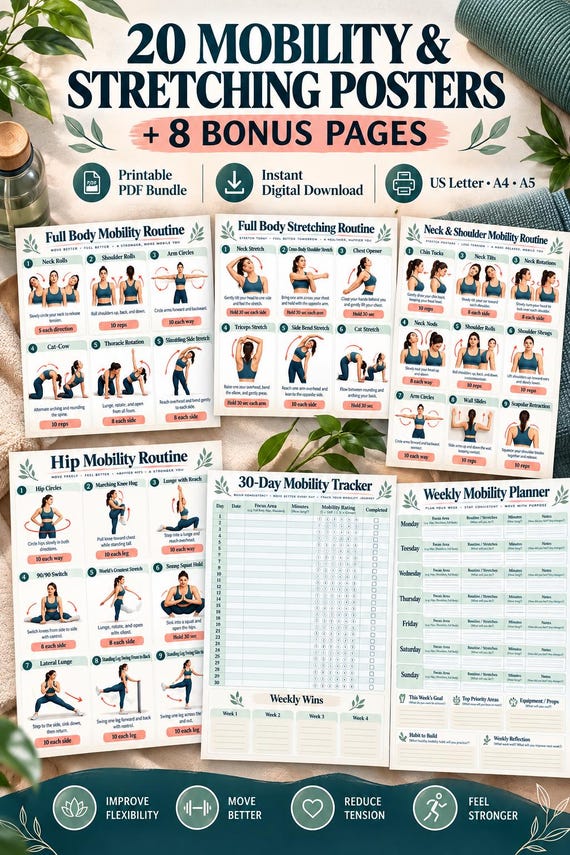
Workout planners sometimes combine illustrations with tracking boxes. Place personal notes where they cannot obscure a starting position, support point, label or arrow. A bright highlight across an exercise image may make the figure less readable, even if the intention was simply to mark a favorite page. Use the margin or a separate log when the design has little spare space.
Label uncertain observations as questions. A note such as ask about arrow direction is different from adding your own replacement arrow. Do not edit a diagram to imply a technique you have guessed. If the reference itself is unclear, keep that issue separate from your tracking record and seek clarification. Annotation tools help organize information; they do not supply the missing instruction or verify that a movement is suitable.
Check sharing and printing before relying on them
A completed PDF can look different in another viewer or on paper, especially when notes use overlays or expandable comment icons. If you plan to send the sheet, reopen the exported copy in another available viewing method and check the actual entries. A tiny comment symbol does not guarantee that its entire note is obvious to the recipient.
For printing, inspect the preview and print one completed sample page. Verify that text fits inside the intended boxes and that handwriting has enough contrast. Some workflows offer a way to produce a fixed visual copy, but the exact behavior depends on the software. Preserve the editable working file before making a flattened or print-ready copy, and label the export clearly so you do not accidentally overwrite the version you still need to change.
Reuse a template without reusing old information
At the beginning of a new period, start from the clean original rather than erasing dozens of entries from the last completed file. Old dates or hidden notes can survive partial cleanup and create an inaccurate record. If the PDF contains reusable form controls, confirm that you have cleared every relevant field before saving a fresh period.
Use a naming scheme that sorts naturally: subject, date and status are usually enough. For example, weekly-log-2026-10-12-working and weekly-log-2026-10-12-export distinguish a file you can still edit from the copy you have shared. You do not need a sophisticated database. A small folder with a clean template, current working copy and dated archive is easier to understand than a collection of near-identical filenames.
Troubleshoot the smallest reproducible problem
If text disappears, first identify where it disappears: immediately after entry, after saving, after reopening, in an exported copy or only on paper. Those are different problems. Record the viewer name, file name and affected page, avoiding private activity details if you send a support message. A screenshot can show the layout issue, but it should not reveal unrelated personal notes.
If a field is too narrow, check whether the intended entry is a brief value rather than a paragraph. Put longer context in a notes area. If no writing method suits the page, printing may be the simpler use of that particular design. The useful outcome is an accurate and readable record, not forcing a document into a workflow it was never advertised to support. Keep the original available while deciding what to change.
Test one entry through save, reopen and export before committing to a PDF note-taking method, and preserve a clean template for the next period.
Written for general information by The Better Plans. Exercise and wellness content cannot diagnose a condition or replace individual professional advice. The Better Plans also sells digital products on Etsy, but this article is free to read and requires no purchase. Read our editorial policy or send a correction.